
Setting up payments
Lunelle takes card payments through Stripe. You connect a Stripe account once, then deposits, balances and refunds happen inside the app. Payments are part of Lunelle Pro.
Open More, then Bookings
Tap More at the bottom of the app, then Bookings. Scroll to the Payments card. Only the salon owner can connect payments.
Tap Set up payments
Work through Stripe's questions. If you already have a Stripe account, sign in with that email instead of making a second one. You are done when the screen says Payments enabled.
Set your deposit
Back on Payments, open Deposit and turn on Take a deposit to book. Choose Fixed or Percent, then First visit only or Every booking. Set Cancellation fee and No-show fee the same way.
Get Tap to Pay ready
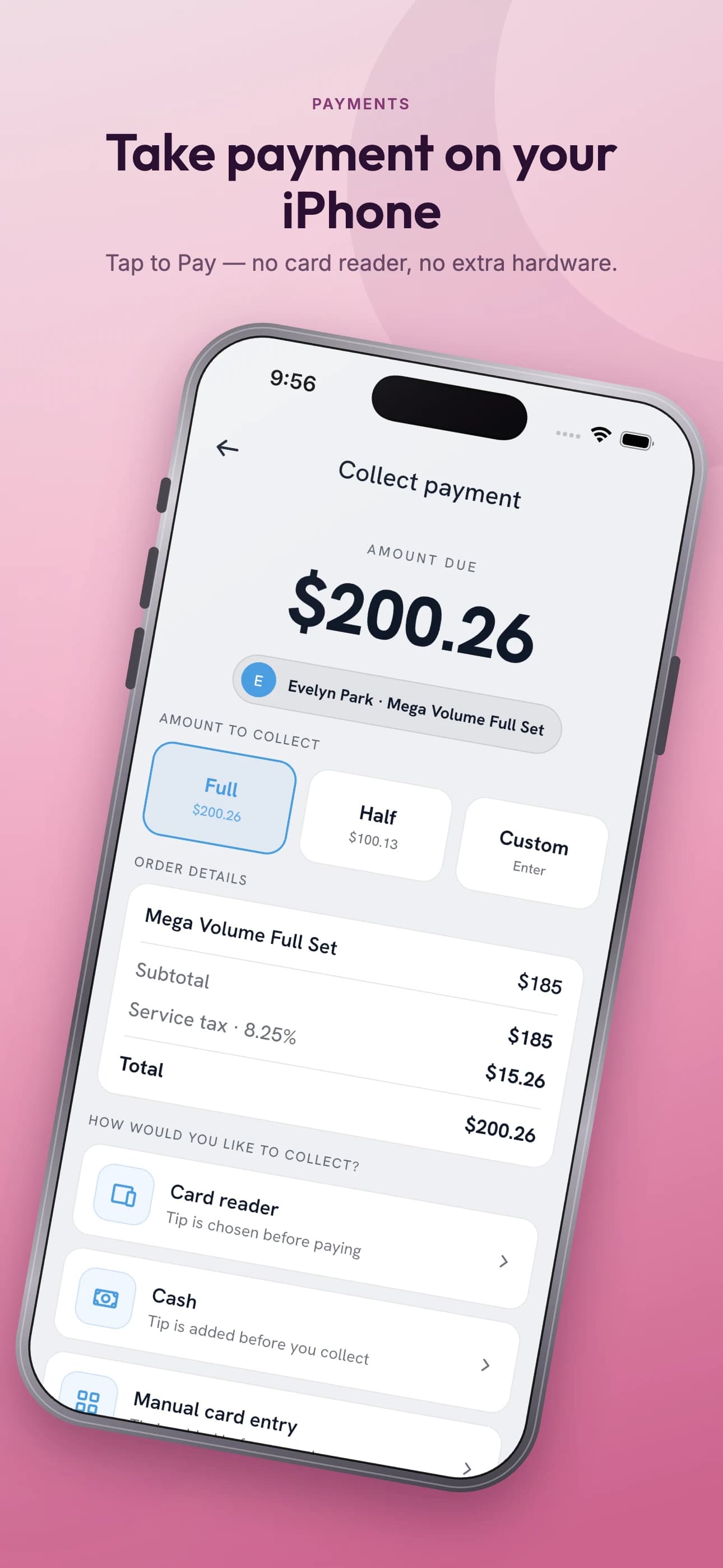
On an iPhone, open Tap to Pay on iPhone from the same Payments card and tap Set up Tap to Pay. On Android it is ready at checkout on any phone with NFC.
Test it on yourself
Book yourself in, tap Checkout on the appointment and pay with your own card. Find it under Payments, then Activity, and refund it. Now you know the whole loop works.
More guides
Something not covered? Email support@lunelle.app.